How to Use Webflow in 2026: A 12-Step Growth Playbook
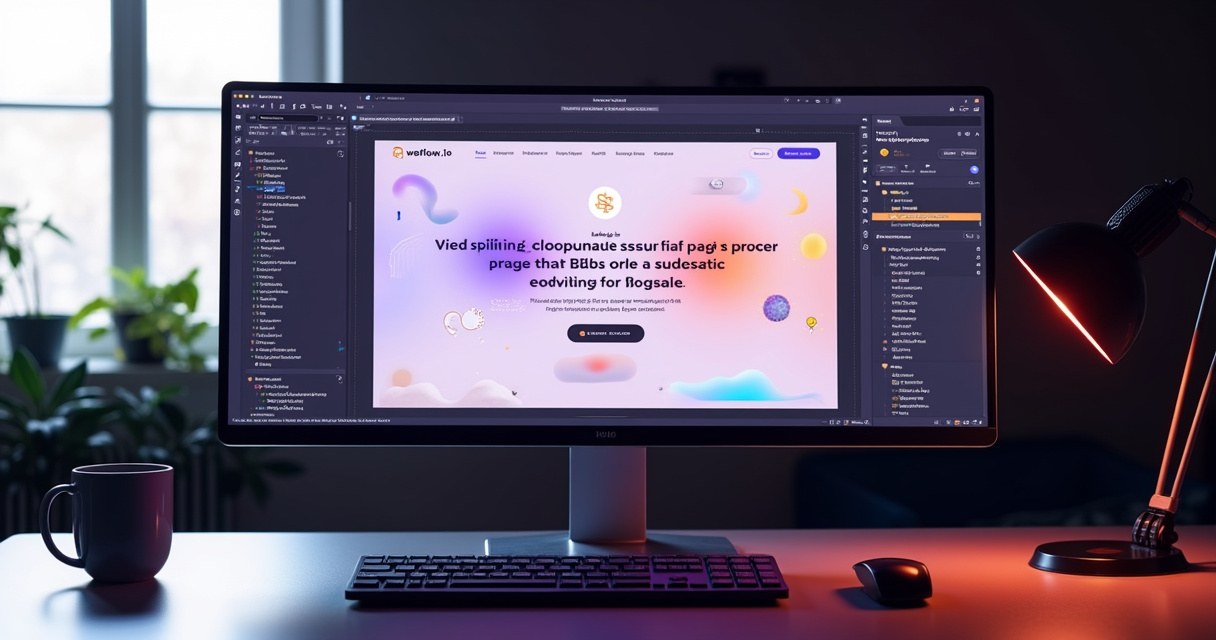
To use Webflow in 2026, you move through four stages: structure the page with semantic elements, style it visually in the Designer, connect dynamic content through CMS Collections, then publish to a free staging domain before pushing to production. A small B2B team can ship a five-page marketing site in roughly 8 to 12 hours of focused build time, and Webflow exports production HTML, CSS, and JavaScript that Google and AI engines crawl natively. This guide walks through 12 numbered steps, working configuration examples, JSON-LD schema for AI citation, Stripe checkout setup, and the API token workflow, plus fixes for the eight errors that stall most first builds.
What it means to use Webflow in 2026
Webflow is a visual web development platform that turns a drag-and-drop canvas into clean, production-ready code. Instead of writing HTML and CSS by hand, you arrange elements on a canvas and Webflow writes the markup and stylesheet for you. The output is standard code, not a proprietary runtime, which is why search crawlers and AI answer engines read a Webflow page the same way they read a hand-coded one. For B2B marketing and growth teams, that mix of visual speed and clean output is the reason the platform keeps showing up in the stack next to, or instead of, WordPress.
The 2026 product is built from four parts that work together. The Designer is the visual canvas where you build layouts and styles. The CMS stores structured content such as blog posts, case studies, and team members, and binds that content to page templates. Webflow E-commerce adds a checkout layer backed by Stripe for payment processing. Managed hosting runs on Amazon Web Services with Fastly as the content delivery network, so pages serve from edge locations close to the visitor without you configuring a server. You can review the platform basics in the Webflow University course library.
For growth teams, the practical value is maintainability. A marketer can update copy, swap a hero image, or publish a new case study without filing a developer ticket, while the underlying class system keeps the design consistent. If you are weighing whether a visual platform fits your roadmap, our AI websites practice maps the trade-offs against headless and traditional CMS builds.
The four-stage workflow
Every Webflow build follows the same loop. First, block out structure with sections, containers, and div blocks. Second, add real content in semantic tags: headings, paragraphs, images, and lists. Third, customize styles by creating reusable CSS classes in the Style panel. Fourth, refine with the built-in AI tools and interactions, then test across breakpoints. Holding to that order keeps your class system clean and prevents the tangle of one-off styles that slows every later edit.
Prerequisites before you open the Designer
Before you build, line up the accounts, hardware, and assets you will need. Webflow runs entirely in the browser, so there is no desktop application to install, but the Designer is demanding on older machines, and unsupported browsers throw rendering errors that look like product bugs. Sort these six prerequisites first and your first session goes smoothly.
- A current desktop browser. Use Google Chrome 120 or later, Microsoft Edge 120 or later, Safari 17 or later, or Firefox 121 or later. The Designer is not supported on mobile browsers, and very old versions misrender the canvas.
- A Webflow account. Sign up at webflow.com with an email or Google account. The free Starter workspace lets you build two pages and test the full Designer before you pay anything.
- A machine with at least 8 GB of RAM. The Designer holds the full document model and style engine in memory, and large CMS sites push past 4 GB quickly, which causes lag and crashes on weaker laptops.
- Your brand assets. A logo in SVG, a web font license or a Google Fonts choice, a hex color palette, and hero images at least 1600 pixels wide.
- A custom domain, optional for launch. Buy it from any registrar and point DNS at Webflow later. You can launch on the free staging domain first and connect the domain when content is ready.
- A Stripe account, if you plan to sell. Webflow E-commerce connects to Stripe for payment processing, so create the Stripe account before you reach checkout setup.
Gather these before you open the canvas. The most common reason a first build stalls on day one is a missing font license or a logo trapped in a low-resolution PNG, both of which force you to stop and redo work later. If your team needs help wiring domains, analytics, and automation around the site, our build and automate team handles that plumbing.
Webflow plans and pricing for B2B teams
Webflow splits billing into two layers that confuse first-time buyers. Workspace plans cover the people building: seats, the Designer, and how many unhosted projects you can keep in progress. Site plans cover hosting and CMS limits for each individual published site. You pay for both, one Workspace plan for your team and one Site plan per live site. For a single B2B marketing site, most teams pair a free or Core workspace with a CMS or Business site plan, then upgrade only when CMS item counts or seats grow. The figures below reflect publicly listed annual-billing tiers in 2026; always confirm current numbers on the Webflow pricing page, because tiers and limits change.
| Plan | Price (annual billing) | What you get |
|---|---|---|
| Basic site | $14/mo | Static marketing site, no CMS, 50 form submissions per month |
| CMS site | $23/mo | 20 CMS Collections, 2,000 CMS items, 1,000 form submissions |
| Business site | $39/mo | 40 CMS Collections, 10,000 CMS items, higher monthly bandwidth |
| Enterprise site | Custom | SLA, SSO, audit logs, advanced security and support |
| Ecommerce Standard | $29/mo | Up to 500 products, 2% Webflow transaction fee |
| Ecommerce Plus | $74/mo | 5,000 products, 0% Webflow transaction fee |
| Ecommerce Advanced | $212/mo | 15,000 products, 0% Webflow transaction fee |
| Starter workspace | $0 | 2 unhosted sites, 1 seat, full Designer access |
| Core workspace | $19/seat/mo | 10 unhosted sites, code export, billing roles |
| Growth workspace | $49/seat/mo | Unlimited unhosted sites, advanced permissions |
| Enterprise workspace | Custom | Security review, SSO, dedicated support manager |
Read the table as two stacks. A typical B2B marketing site runs fine on a CMS site plan at $23 per month paired with a single Core seat, which keeps the all-in cost near $42 per month before a domain. Move to the Business site plan when you cross 2,000 CMS items, which happens faster than teams expect once you store blog posts, authors, case studies, and categories as separate Collections. On any Ecommerce plan, remember that the Webflow transaction fee sits on top of Stripe's processing fee, so a sale on the Standard plan carries both the 2% Webflow cut and Stripe's 2.9% plus $0.30 per transaction.
How to navigate the Webflow Designer
The Designer looks busy on first load, but it is organized into three zones: a left toolbar, the central canvas, and a right inspector. Learn where four panels live and you can build almost anything.
The canvas sits in the center and shows your page at the current breakpoint. Across the top toolbar you switch breakpoints in this order: Desktop, Tablet, Mobile landscape, and Mobile portrait. Styles cascade downward, so a change on Desktop flows to smaller screens unless you override it, while a change on Mobile portrait stays local to that breakpoint. This cascade is the single most important behavior to understand, because editing on the wrong breakpoint is the top cause of 'my desktop looks broken now' support tickets.
On the left, the Add panel (keyboard shortcut A) holds every element: sections, containers, div blocks, headings, images, forms, and prebuilt components. The Navigator, also called Layers, shows the nested structure of the page as a tree so you can select a parent you cannot click on the canvas. The Pages panel lists static and CMS template pages, and the Assets panel stores uploaded images and documents. The CMS panel lists your Collections.
On the right, the Style panel is where you create and edit CSS classes, set typography, spacing, layout with Flexbox and Grid, and effects. The Settings panel, the gear icon, sets element IDs, link targets, and custom attributes. The Interactions panel, the lightning icon, builds animations and scroll effects. Screenshot description: the right panel shows a selected element named 'hero-heading' with a font size of 48 pixels, a line height of 1.1, and a margin-bottom of 16 pixels, while the selector dropdown reads 'hero-heading' in blue, signaling a reusable class rather than a tag-level style.
12 steps to build your first page in Webflow
This is the core walk-through. Each step below pairs the action with a screenshot description or an output example so you know what success looks like. Budget about two hours for your first pass; later pages go faster because your classes already exist.
- Create the project. From the dashboard click New Site, then choose Blank Site. Screenshot: a modal titled 'Create new site' with a blank canvas thumbnail and a template search box above it.
- Set brand styles on the body tag. Select the Body (All Pages) tag and set the base font family, color, and a 16 pixel base size. Screenshot: the Style panel selector reads 'Body (All Pages)' in orange, signaling a global tag style.
- Add a Section and Container. Drag a Section onto the canvas, then drop a Container inside it. Screenshot: a full-width blue section outline with a centered container guide near 940 pixels.
- Build the navbar. From the Add panel drop a Navbar, then replace the placeholder with your SVG logo and three links. Screenshot: a top bar with a left logo and right-aligned links labeled Features, Pricing, Contact.
- Create the hero. Inside a new section add an H1, a paragraph, and a Button. Type a 7 word headline and a one line subhead. Screenshot: a large heading reading 'Ship your B2B site in a week' above a blue button.
- Style with named classes. Select the H1 and create a class called hero-heading, then set size and spacing. Screenshot: the selector field shows 'hero-heading' in blue with 0 other elements using it yet.
- Make it responsive. Switch to the Tablet breakpoint and reduce the heading to 32 pixels. Screenshot: the breakpoint icon highlights Tablet and the canvas narrows to 768 pixels wide.
- Add a CMS-driven section. Drop a Collection List, then bind it to a Blog Posts Collection. Screenshot: three repeating cards appear, each labeled 'Collection Item 1, 2, 3'.
- Bind fields to the list. Select the card heading and connect it to the Name field, then the image to Featured Image. Screenshot: the field shows a purple 'Get text from Blog Posts: Name' binding badge.
- Set per-page SEO. Open Page Settings and write a title tag and meta description, then set the Open Graph image to 1200x630. Screenshot: the SEO section shows a 58 character title and a 152 character description with green length indicators.
- Add custom code in the head. In Page Settings paste your JSON-LD schema into the 'Inside head tag' box. Screenshot: a code field containing a script tag of type application/ld+json.
- Publish to staging. Click Publish, select the .webflow.io staging domain, and confirm. Output example: a success toast reads 'Published to yoursite.webflow.io' with a clickable preview link.
After step 12 you have a live, crawlable page on the staging domain. Treat that URL as your QA environment: share it with stakeholders, run mobile checks, and only push to a custom domain once content and schema pass review.
Build global components first
Before you design individual pages, build the elements that repeat across the whole site as reusable Components and base classes. A Component in Webflow is a saved, linked element: edit it once and every instance updates everywhere. Building these first means you never rebuild a navbar five times, and it locks design consistency across the site from day one, a practice codified in Webflow's design-system guidance.
Create these seven globals before any page-specific work:
- Navbar component with logo, links, and a primary call to action button, set to stay fixed or sticky.
- Footer component with navigation columns, legal links, and social icons.
- Primary button class for high-emphasis actions, plus a secondary button variant.
- Heading classes for display, H1, H2, and H3 so type scales consistently.
- Section wrapper class that controls vertical padding, so every section breathes the same way.
- Container class that caps content width and centers it, usually around 1,200 pixels.
- Color swatches saved as global Swatches for brand primary, secondary, neutral, and accent.
The reason to front-load this work is mechanical. Webflow styles cascade through classes, so when your button, type scale, and spacing live in named global styles, a single edit ripples site-wide. When they live in one-off styles scattered across pages, a rebrand becomes a manual hunt across dozens of elements. Teams that skip this step usually feel the pain around page four, when the design has quietly drifted and nothing matches. Spend the first 60 to 90 minutes here and the rest of the build moves faster and stays maintainable. Conversion-focused teams often pair this with a design-system review from our conversion rate optimization group to keep buttons and forms on-brand and high-converting.
How to set up CMS Collections the right way
A CMS Collection is a content type, like a database table, that you design once and reuse for every entry. The order of operations matters: define your fields first, then build the template page, then add items. Teams that add items before finalizing fields end up re-entering content when a field type changes. Plan the schema on paper, then build it.
Start with the fields. For a blog, define a Collection called Blog Posts with the structure below. Note the two Reference fields, which link this Collection to Authors and Categories so you can filter and group posts without duplicating data. Reference fields are how you build related-content and topic-hub structures cleanly.
Collection: Blog Posts
Fields:
  name            Plain text     (required, used as H1 and title)
  slug            Slug           (auto-generated from name)
  excerpt         Plain text     (max 160 chars, used in meta description)
  post-body       Rich text      (the article HTML)
  featured-image  Image          (1200 x 630 for Open Graph)
  author          Reference      -> Authors collection
  category        Reference      -> Categories collection
  read-time       Number         (minutes)
  publish-date    Date/Time
  featured        Switch         (true/false for homepage promotion)
Once the fields exist, open the Blog Posts template page. This is the layout Webflow renders for every item. Bind each element to a field: the H1 to Name, the body wrapper to Post Body, the image to Featured Image, and the byline to the Author reference. Add a Collection List on a separate blog index page and bind it the same way to show cards. Filtering that index by the Category reference gives you category pages without building a single one by hand. Build the Authors and Categories Collections before Blog Posts, because a Reference field can only point at a Collection that already exists.
Connecting Webflow E-commerce with Stripe
If your B2B site sells anything, from a paid template to a course or a physical product, Webflow E-commerce handles the storefront and Stripe handles the money. The two are designed to connect in a few clicks, but the fee math and the test workflow trip people up, so work through this in order.
- Enable Ecommerce. In site settings open the Ecommerce tab and turn it on. This unlocks the Products and Categories Collections, which behave like any CMS Collection.
- Connect Stripe. In Ecommerce settings click Connect Stripe Account and authenticate. Webflow uses Stripe for card processing, so this step is required before checkout works.
- Add products. Create items in the Products Collection with name, price, images, and variants. Bind them to a product template page just like blog posts.
- Configure checkout, tax, and shipping. Set your shipping zones and tax behavior, then style the prebuilt Cart, Checkout, and Order Confirmation pages.
- Test before launch. Use Stripe test card 4242 4242 4242 4242 with any future expiry and any CVC to place a test order, then confirm it appears in both Webflow and the Stripe dashboard.
Now the fees, because they stack. Stripe charges its standard processing fee of 2.9% plus $0.30 per successful card transaction, published on the Stripe pricing page. On Webflow's Ecommerce Standard plan, Webflow adds a 2% transaction fee on top of Stripe's cut, while the Plus and Advanced plans drop the Webflow fee to 0%. So on a $100 sale, the Standard plan costs roughly $2 to Webflow plus $3.20 to Stripe, leaving about $94.80, while the same sale on Plus costs only Stripe's $3.20. If transaction volume is real, the higher monthly Plus plan usually pays for itself by killing the 2% override.
How to generate and use the Webflow API token
The Webflow Data API lets external tools read and write your site data, which is how you sync a CMS to a spreadsheet, push posts from another system, or wire automations through Zapier and Make. Access is controlled by a site-level API token you generate yourself.
To create one, open your site settings and go to the Apps and Integrations tab, then find the API access section. Click Generate API token, give it a name, choose scopes (read and write for CMS items, read for site data), and copy the token immediately, because Webflow shows it only once. Store it in a password manager or an environment variable, never in client-side code, since the token grants full access at its scopes. The full endpoint reference lives in the Webflow Data API docs.
Here is a minimal read request that lists your sites using version 2 of the API:
curl -X GET "https://api.webflow.com/v2/sites" \
  -H "Authorization: Bearer YOUR_API_TOKEN" \
  -H "accept: application/json"
And here is a write request in JavaScript that creates a new draft CMS item in a Collection. Replace the collection ID and field names with your own:
const res = await fetch(
  "https://api.webflow.com/v2/collections/COLLECTION_ID/items",
  {
    method: "POST",
    headers: {
      "Authorization": "Bearer YOUR_API_TOKEN",
      "Content-Type": "application/json"
    },
    body: JSON.stringify({
      isDraft: true,
      fieldData: {
        name: "How to Use Webflow in 2026",
        slug: "how-to-use-webflow-2026",
        excerpt: "A 12-step B2B build guide."
      }
    })
  }
);
const data = await res.json();
console.log(data.id);
After a write, the item is created as a draft. Publish it through the API or from the CMS panel so it goes live. Rate limits apply, so batch large imports and respect the per-minute caps documented in the reference. Teams that automate content operations this way often connect it to broader workflows through our growth tools and automation builds.
Schema markup, the highest-leverage fix for AI search
If your Webflow pages are not appearing in AI Overviews or getting cited by answer engines, missing structured data is usually the first thing to fix. Schema markup is JSON-LD code that labels what a page is about: that this block is an Article, that these are questions and answers, that this is your Organization. Search and AI systems use it to understand and confidently quote your content. Google explains the basics in its structured data introduction, and the vocabulary itself is defined at schema.org.
In Webflow you paste JSON-LD into the 'Inside head tag' box in Page Settings for one page, or into the site-wide custom code for elements that belong on every page, like Organization. Here are three blocks to start with. First, an Organization block for the homepage:
<script type="application/ld+json">
{
  "@context": "https://schema.org",
  "@type": "Organization",
  "name": "Skitrate",
  "url": "https://skitrate.com",
  "logo": "https://skitrate.com/logo.png",
  "sameAs": ["https://www.linkedin.com/company/skitrate"]
}
</script>
Second, an Article block for a blog post, following Google's Article structured data guidance:
<script type="application/ld+json">
{
  "@context": "https://schema.org",
  "@type": "Article",
  "headline": "How to Use Webflow in 2026",
  "datePublished": "2026-06-23",
  "author": {"@type": "Organization", "name": "Skitrate"},
  "image": "https://skitrate.com/webflow-guide.png"
}
</script>
Third, an FAQPage block for any page with a question-and-answer section:
<script type="application/ld+json">
{
  "@context": "https://schema.org",
  "@type": "FAQPage",
  "mainEntity": [{
    "@type": "Question",
    "name": "Is Webflow good for SEO?",
    "acceptedAnswer": {"@type": "Answer", "text": "Yes, Webflow outputs clean HTML and lets you set titles, meta, and schema per page."}
  }]
}
</script>
Match the schema type to the page. The table below maps the types most B2B sites need to where they belong.
| Schema type | Use it on | Key fields |
|---|---|---|
| Organization | Site-wide, in head | name, url, logo, sameAs |
| WebSite | Homepage | name, url, potentialAction |
| Article or BlogPosting | Blog posts | headline, author, datePublished, image |
| FAQPage | FAQ and Q&A sections | mainEntity, Question, acceptedAnswer |
| BreadcrumbList | Deep pages | itemListElement, position, name |
| Product | Ecommerce product pages | name, offers, price, availability |
| LocalBusiness | Contact and location pages | address, telephone, openingHours |
Validate every block in Google's Rich Results Test before publishing, and keep the dates and authors accurate. Structured data that misrepresents content gets ignored or penalized. If you want this done at scale across a content library, our answer engine optimization service builds and maintains schema as part of the AI-visibility workflow.
Writing direct-answer content that AI engines cite
Clean code and schema get a page eligible for citation; the writing decides whether an AI engine actually quotes it. Answer engines extract short, self-contained passages that directly resolve a query, so the structure of your content matters as much as the depth. The goal is to make extraction easy.
Use this checklist on every important page:
- Lead with a 40 to 60 word direct answer. Put a concise, complete answer to the page's core question in the first paragraph, so a system can lift it without reading further.
- Write question-style H2 headings. Phrase section headers the way users ask, such as 'How much does Webflow cost?', so the heading matches the query.
- Use lists and tables for comparisons. Structured blocks are easier to parse and reassemble than dense prose.
- Name entities explicitly. Reference real products, companies, versions, and prices rather than vague pronouns, so the model can ground the claim.
- Add an FAQ with schema. A handful of real questions with 40 to 80 word answers gives engines clean question-answer pairs to cite.
- Keep facts current and dated. Include the year and specific figures; stale or undated claims get passed over for fresher sources.
The mechanics reinforce each other. A direct-answer paragraph near the top, a question-shaped heading above it, and an FAQPage schema block describing the same content give an AI system three consistent signals about what the page answers. That redundancy is what earns citations. This is also why a 6,000 word guide that buries its answer in section nine often loses to a tighter page that answers in the first 60 words. Lead with the answer, then earn the depth. For teams building this into a repeatable content engine, our SEO services combine traditional ranking work with answer-engine structuring so a single page performs in both classic search and AI results.
Image optimization and Core Web Vitals in Webflow
Image weight is the most common reason a Webflow page feels slow, and speed feeds directly into both rankings and conversions. Webflow does a lot automatically, but it cannot fix a 4 MB hero you uploaded at full camera resolution. Your job is to hand it reasonable inputs and let the platform optimize from there.
Webflow converts uploaded images to WebP and serves responsive sizes automatically, generating multiple resolutions and picking the right one per device. WebP is the reason this matters so much:
Google's WebP documentation reports that lossy WebP images run roughly 25 to 34 percent smaller than comparable JPEG images at equivalent quality, and lossless WebP is about 26 percent smaller than PNG, which directly lowers Largest Contentful Paint on image-heavy pages.
You can read the full comparison in Google's WebP documentation. To take advantage of it, follow a few rules. Resize images to roughly their display dimensions before upload; a logo shown at 200 pixels does not need to be 2,000 pixels wide. Use 1200x630 pixels for featured and Open Graph images, which is the standard social and link-preview size. Keep hero images under about 300 KB after export. Let Webflow handle lazy loading, which it applies to off-screen images by default so they load only as the visitor scrolls.
The payoff is measured by Core Web Vitals, the performance metrics Google uses as a ranking signal. The most image-sensitive one is Largest Contentful Paint, which usually fires on the hero image or headline. Compress that hero, serve it as WebP, and preload it, and you move LCP into the green. Pair image discipline with minimal custom code and you clear the thresholds that protect both search visibility and the conversion rate of every landing page.
Staging, publishing, and mobile QA
Webflow gives every project a free staging domain at yoursite.webflow.io, and the professional workflow is to publish there first, test, and only then publish to your production domain. Staging is a real, crawlable copy of your site that you can share with stakeholders and run checks against without touching the live URL. Treat it as your QA gate.
Before any production publish, run this checklist on the staging URL:
- Mobile portrait. Open the staging link on a real phone, not just the Designer preview, and confirm tap targets, spacing, and font sizes.
- Tablet and mobile landscape. Check the two middle breakpoints, where layouts most often break.
- Links and forms. Click every navigation link and submit each form to confirm it routes and sends a notification.
- SEO fields. View source and confirm the title tag, meta description, Open Graph image, and JSON-LD are present.
- Performance. Run the staging URL through a speed tool and confirm Largest Contentful Paint and layout shift are in range.
- Spelling and content. Read every page once; staging is where typos are cheap to fix.
That performance check has a hard target:
Google's Core Web Vitals program sets a 'good' Largest Contentful Paint at 2.5 seconds or faster for 75 percent of real visits, and Cumulative Layout Shift below 0.1, which are the thresholds a Webflow page should clear before going to production.
The standard is documented at web.dev. When staging passes the checklist, publishing to production is one click: choose your custom domain in the Publish dialog and confirm. Webflow pushes the update to the Fastly edge in seconds. If something looks wrong after publish, you can republish or roll back from the site's backups, so a bad deploy is never permanent.
6 common Webflow pitfalls and how to fix them
Most first builds hit the same handful of traps. Each one below is followed by the fix, so you can avoid the rework that catches new teams.
- Styling a tag instead of a class. Selecting an H1 and changing its size while the selector reads 'All H1' restyles every H1 on the site. Fix: always create a named class such as hero-heading before changing visual properties, and reserve tag styles for true global defaults set once on the Body tag.
- Leaving SEO fields blank. A page with no title tag or meta description shows up as a bare slug in search results. Fix: fill the title and meta in Page Settings for every page, keeping titles near 55 characters and descriptions near 150.
- Uploading full-resolution images. A 4 MB hero tanks Largest Contentful Paint even though Webflow serves WebP. Fix: resize to display size before upload and keep heroes under 300 KB so the optimized output is small too.
- Editing on the wrong breakpoint. Changing layout on Mobile and expecting Desktop to follow, or the reverse, breaks the cascade. Fix: build and style on Desktop first, then move down through Tablet and Mobile, overriding only what needs to change.
- Deleting a CMS field that a template uses. Removing a field that a template page or Collection List binds to breaks those bindings and can blank out content. Fix: update or rebind the template first, then delete the field.
- Pasting custom code in the wrong slot. Schema belongs in the head; scripts that manipulate the page often belong before the closing body tag. Fix: put JSON-LD in 'Inside head tag' and behavioral scripts in 'Before body tag', then republish, since code changes need a publish to go live.
None of these are hard to fix once you know them, but each can cost an hour of confused debugging the first time. Bookmark this list and run through it whenever something behaves unexpectedly.
Troubleshooting Webflow: 8 errors and fixes
When something breaks, the cause is usually one of a small set of known issues. Use this table to go from symptom to fix without guessing. Work top to bottom; the most frequent causes are listed first, and most reports resolve before you reach the bottom row.
| Symptom | Likely cause | Fix |
|---|---|---|
| Site fails to publish | Invalid custom code or an oversized asset | Remove the most recent embed or large file, then republish |
| Custom domain will not connect | DNS records point to the wrong target | Set the A records to Webflow's IPs and the www CNAME as shown in hosting settings |
| Fonts do not render on the live site | Font not added to the project or missing license | Add the font under Site Settings, Fonts, then republish |
| CMS items do not appear | Items are drafts or the Collection List is filtered out | Publish the items and check the list filter and limit settings |
| Form submissions never arrive | No notification email set or caught in spam | Set the form notification email and add reCAPTCHA to cut spam |
| Changes show in Designer but not live | The site was not published | Click Publish; if still stale, hard refresh to clear the CDN cache |
| Interactions do not fire on mobile | Trigger is set to hover, which touch devices lack | Use tap or scroll-into-view triggers for mobile interactions |
| Designer is slow or laggy | Too many nested DOM nodes or an old browser | Flatten nesting, convert repeats to Components, and update the browser |
If a problem survives this table, check the Webflow status page and the official forum, where outages and edge cases are usually documented within minutes. Most 'broken site' reports turn out to be an unpublished change or a DNS record that has not propagated yet, both of which resolve on their own with a publish or a short wait.
Advanced tips for power users
Once the basics click, these techniques separate a maintainable, high-performing Webflow site from a fragile one. None require leaving the platform.
Use custom code embeds sparingly but deliberately. The Embed element drops raw HTML, CSS, or JavaScript anywhere on a page, which is how you add a third-party widget, a custom calculator, or a snippet that Webflow's UI does not cover. Keep these small and documented, because they are the first thing to audit when a publish fails. For site-wide behavior, the head and footer custom-code fields in site settings are the right home.
Drive schema from the CMS. Instead of hand-writing an Article block on every post, put a JSON-LD template inside the Blog Posts template page and bind its fields, the headline, date, author, and image, to CMS fields. Now every new post ships with valid, accurate schema automatically, which is how content teams keep AI-optimized structured data consistent across hundreds of pages.
Lean on Components and Variables. Components turn any repeated layout into a single source of truth, and Variables for color, spacing, and typography let you define a token once and reuse it, so a rebrand becomes a handful of edits rather than a site-wide sweep. Combined, they turn Webflow into a real design system rather than a pile of pages.
Automate with the API and connect localization. Use the Data API with Zapier, Make, or a small script to push content in from a spreadsheet or another system, and use Webflow Localization to serve translated versions from the same project. For teams scaling content operations, our automation builds wire these pieces into a pipeline so publishing a post triggers the downstream syndication and tracking automatically. Export the code on a Core workspace or higher if you ever need to hand a static build to engineering.
Complete worked example: a five-page B2B site
Here is the entire workflow assembled into one project, the kind a growth team ships in a week. The site has five pages: Home, Features, Pricing, Case Studies (CMS-driven), and Contact. Follow the sequence and you produce a live, schema-rich, mobile-tested site.
Day 1, foundation. Create a Blank Site on a Core workspace. Set the Body tag defaults, then build the seven global components: navbar, footer, button classes, heading classes, section and container wrappers, and color swatches. This is the slow part, and it pays back on every later page. Time: about three hours.
Day 2, static pages. Build Home with a hero, a three-column feature grid, a logo strip, a testimonial, and a closing call to action. Reuse the global classes throughout. Build Features and Pricing the same way, dropping your existing components so layout and type stay consistent. Add the Pricing page as a simple three-tier table styled with your button classes. Time: about four hours.
Day 3, CMS and content. Create the Authors and Categories Collections, then Blog Posts and Case Studies with the field schema shown earlier. Build the Case Studies template page and a Case Studies index with a filtered Collection List. Add three real case studies so the layout is tested with actual content, not placeholders. Time: about three hours.
Day 4, SEO, schema, and QA. Fill every page's title and meta. Add the site-wide Organization block in the head, an Article template block bound to CMS fields on Case Studies, and an FAQPage block on Pricing. Set Open Graph images at 1200x630. Publish to the .webflow.io staging domain and run the full mobile QA checklist on a real phone. Validate schema in the Rich Results Test. Time: about two hours.
Day 5, launch. Connect the custom domain in hosting settings, point DNS, and publish to production. Confirm the live URL serves over HTTPS, re-test Core Web Vitals, and submit the sitemap, found at yourdomain.com/sitemap.xml, to Google Search Console. The site is live, fast, and structured for both search and AI citation. Total build time: roughly 14 hours across the week.
How to get started Monday morning
You do not need the whole week to begin. Here is the concrete first session, the one you can run before lunch on Monday. It gets you from zero to a live staging page with real structure, which is the hard part psychologically and the fastest way to build momentum.
First, create a free Starter workspace at webflow.com and open a Blank Site. Second, set your Body tag font and color so the whole site inherits your brand. Third, build just two global components, the navbar and the footer, because those two define the frame of every page. Fourth, build a single home hero: an H1 with a 7 word headline, one line of subtext, and a primary button, all styled with named classes. Fifth, create a Blog Posts Collection with the field schema from this guide, even if you have no posts yet, so the structure exists. Sixth, paste the Organization JSON-LD into your site-wide head code. Seventh, publish to the .webflow.io staging domain and open it on your phone.
That is a complete, crawlable, schema-bearing page in under two hours. From there you repeat the loop: add a page, reuse your components, bind content, validate schema, publish to staging, QA on mobile, then production. The platform rewards teams that build globals first and answer the user's question in the first 60 words of every page. If you want a partner to stand up the full system, from the Webflow build to the schema, automation, and conversion work around it, our AI websites team and CRO group do exactly this for B2B growth teams. Start the page today; refine it all week.
Frequently Asked Questions
Is Webflow good for SEO and AI search?
Yes. Webflow exports clean, semantic HTML, lets you set a title, meta description, and Open Graph image per page, and accepts JSON-LD schema in the head. Those are the same signals search and AI engines reward. Add Article, Organization, and FAQPage schema, lead each page with a 40 to 60 word direct answer, and Webflow competes with any platform for citations.
How much does Webflow cost for a B2B site?
A typical B2B marketing site runs about $23 per month for the CMS site plan plus one Core workspace seat at $19 per month, near $42 monthly before a domain. Static sites start at $14 per month. Ecommerce starts at $29 per month, and Stripe adds 2.9% plus $0.30 per sale. Confirm current tiers on Webflow's pricing page.
Do I need to know how to code to use Webflow?
No. Webflow is a visual platform that writes HTML, CSS, and JavaScript as you design, so you can build and launch a full site without writing code. Understanding the box model, Flexbox, and CSS classes makes you much faster and avoids messy styling, but it is not required to publish a working, responsive B2B site.
How do I connect a custom domain in Webflow?
Buy a domain from any registrar, then open your site's hosting settings and add the domain. Webflow gives you DNS records: set the A records to Webflow's IP addresses and the www CNAME as shown. After DNS propagates, usually within a few hours, select the domain in the Publish dialog and publish to production.
What is the Webflow staging domain used for?
Every project gets a free yoursite.webflow.io staging domain. You publish there first to test layout, links, forms, schema, and mobile responsiveness on real devices before touching the live site. It is a crawlable QA copy you can share with stakeholders. Once staging passes your checklist, publishing to the production domain is one click.

Priya runs Skitrate's marketing automation and AI agent stack. Builds the workflows, schemas and data pipelines that move clients from manual ops to autonomous campaign management. Background in distributed systems before pivoting into ad-tech and martech in 2021. Holds patents on agentic campaign orchestration.
- Builds and operates the Skitrate AI automation stack (n8n + LangChain + Postgres + pgvector)
- Designed the agent workflows now running enrichment, scoring and reporting for 40+ clients
- Previously SRE-turned-platform-engineer at a Tier-1 ad-tech firm
- Speaker on AI in marketing operations at SaaStr and MarTech Conference